+86-13926505109
 info@aiotomni.com
- Contact Us
-
Omni Intelligent Technology Co., Ltd.
Tel:(+86)755-89208216
Fax: (+86)755-89208219
Add: Floor 11,building 31,Phase 3,Lianchuang Tech Park,No.21 Bulan Road, Longgang District, Shenzhen, P.R.China.
If you have any question,Please contact us,we will give you the best service! Contact Now
- Hot Product
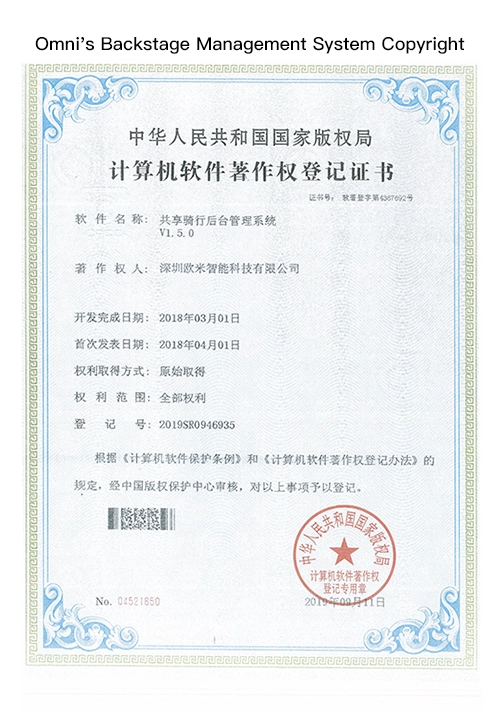
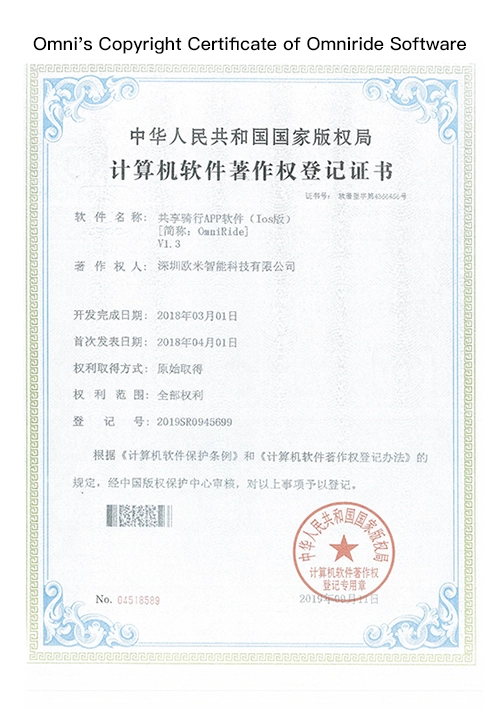
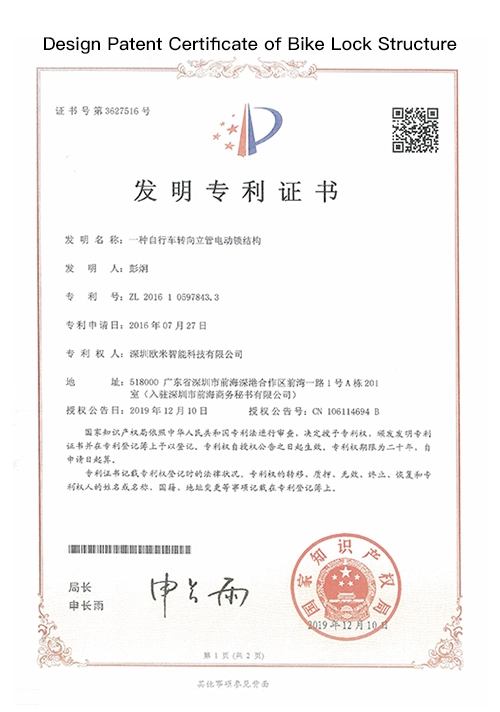
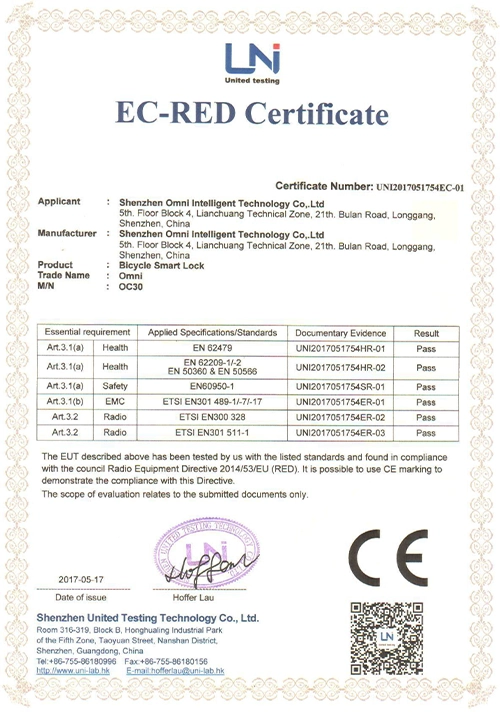
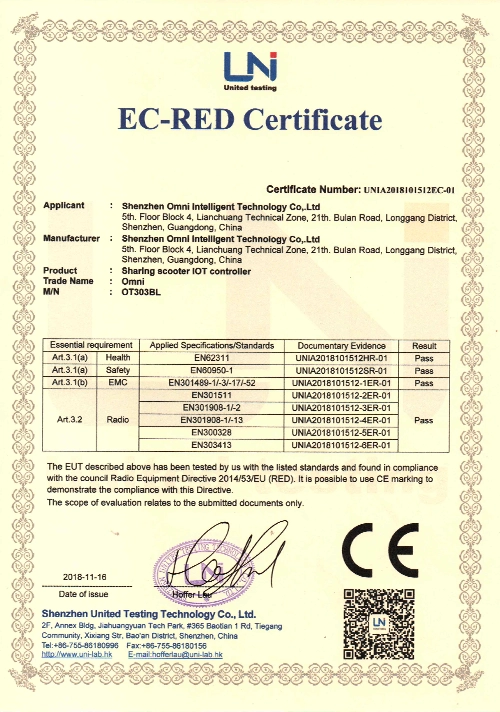
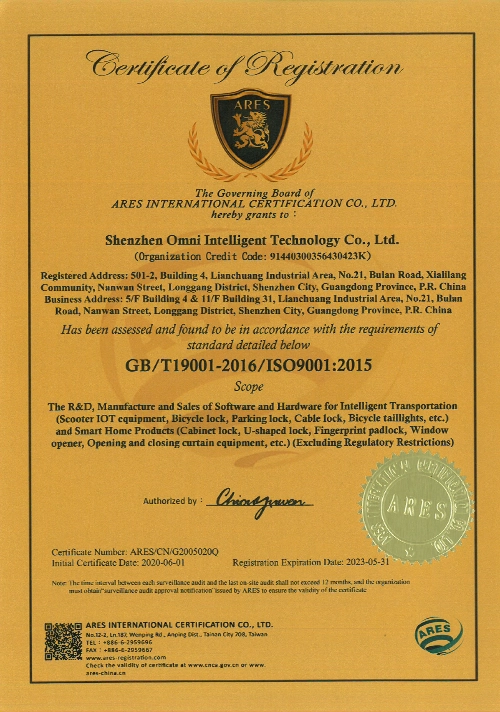
- Certifications
-


- Subscribe
-
Get email updates on new products
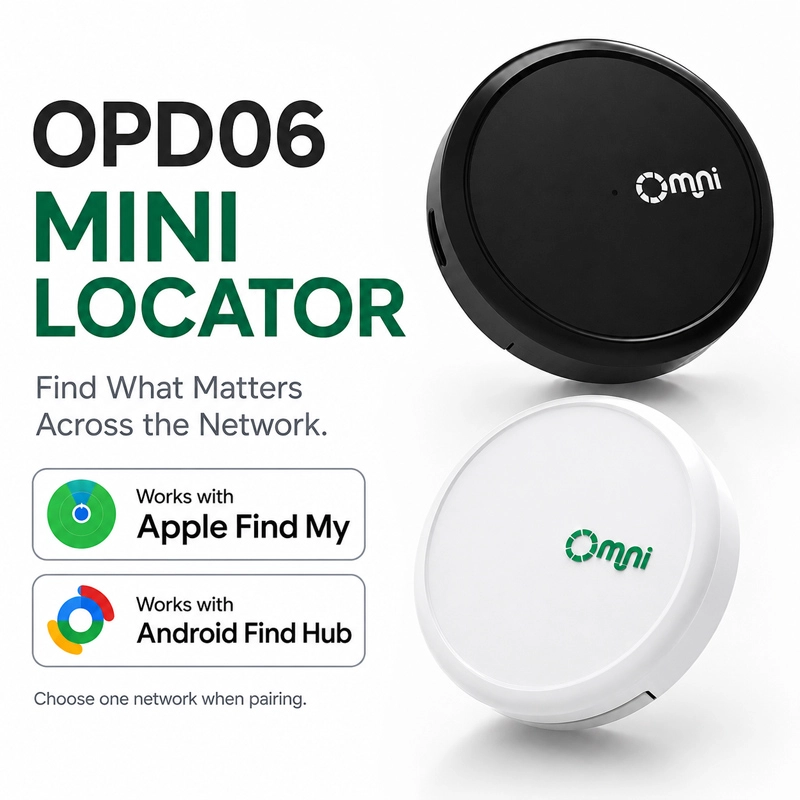
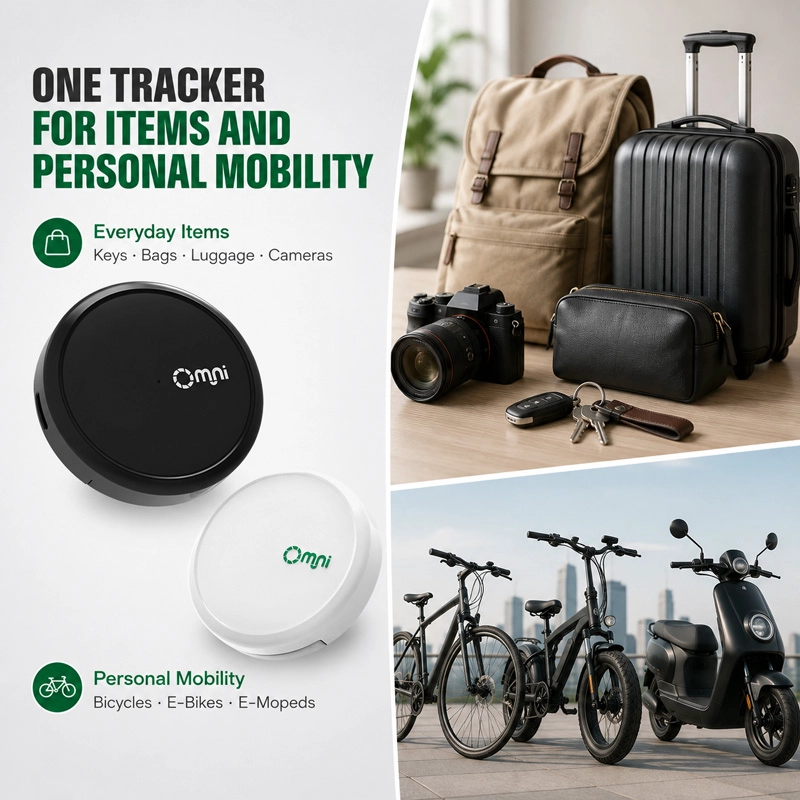

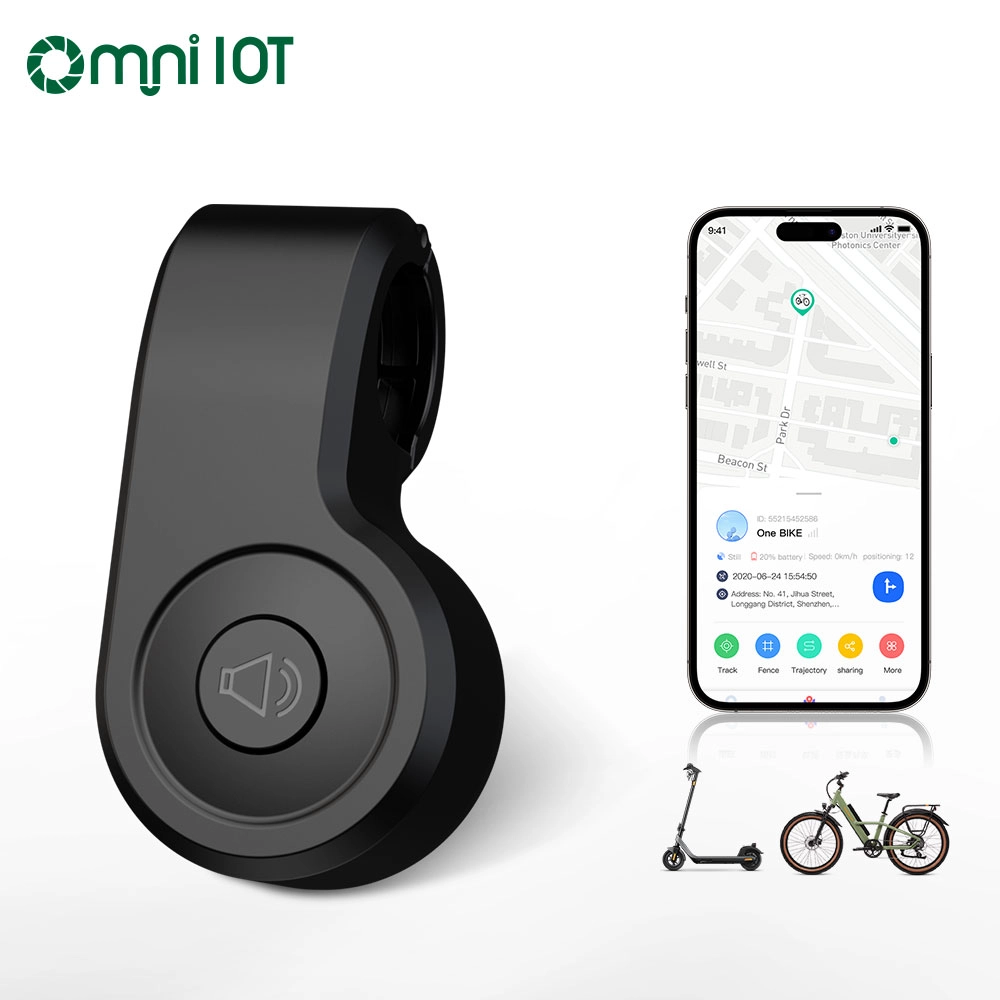
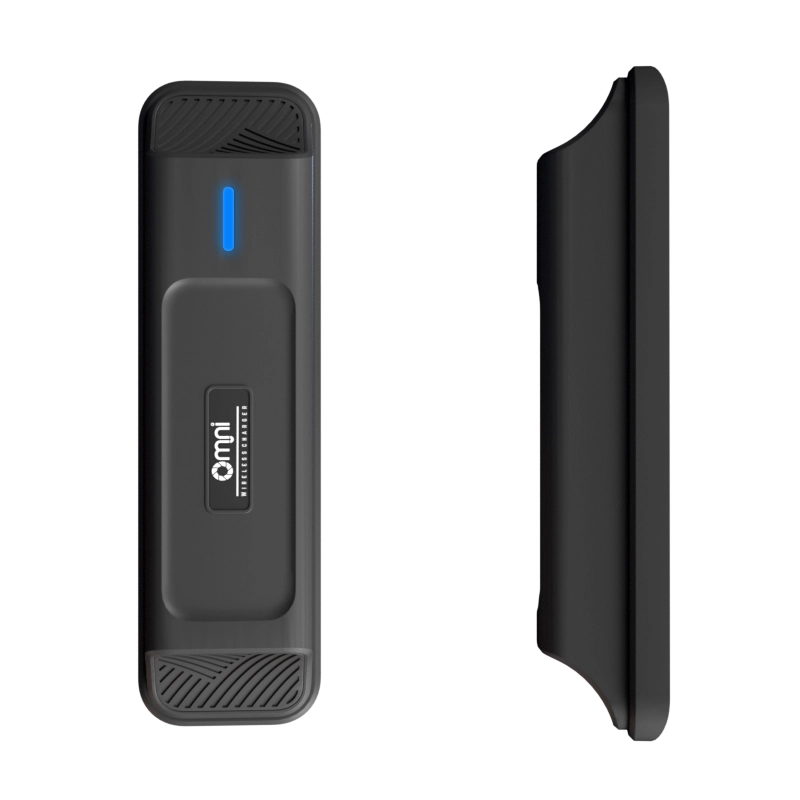
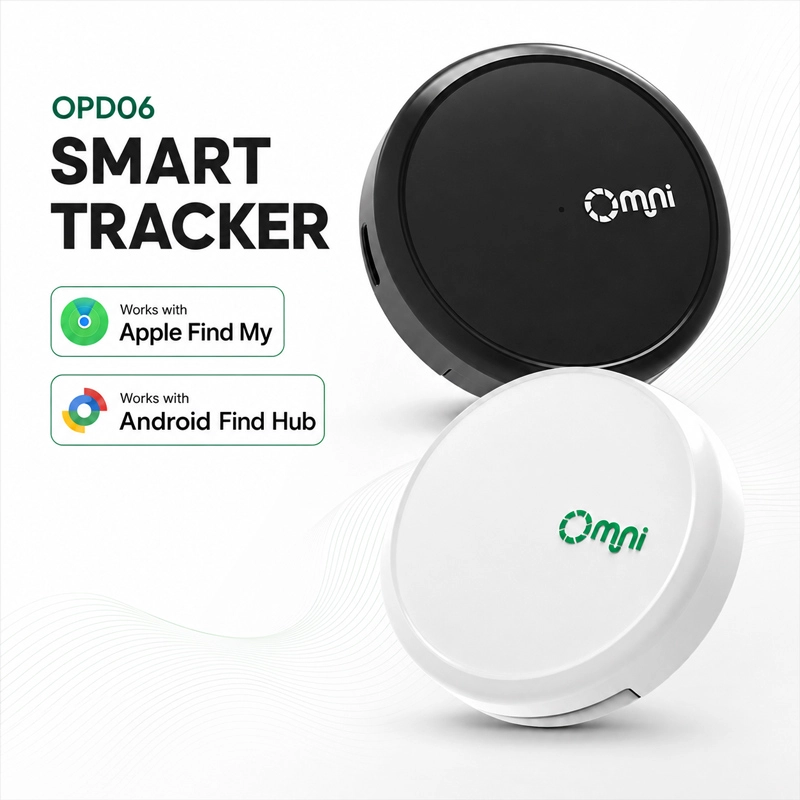
OMNI Mini Locator for Belongings Two-wheelers
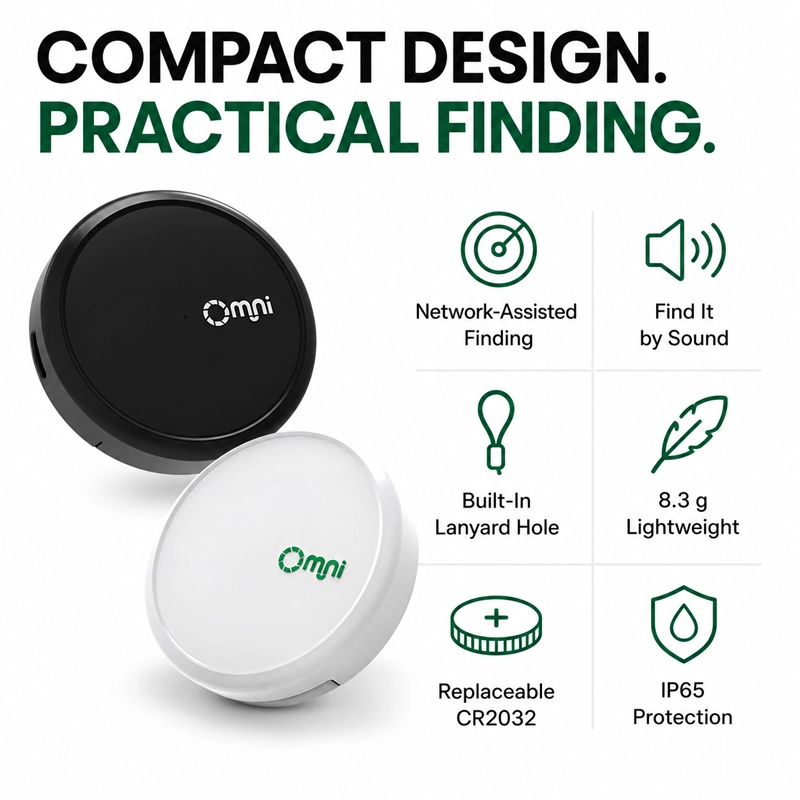
- IP65 Protection – Built for outdoor reliability
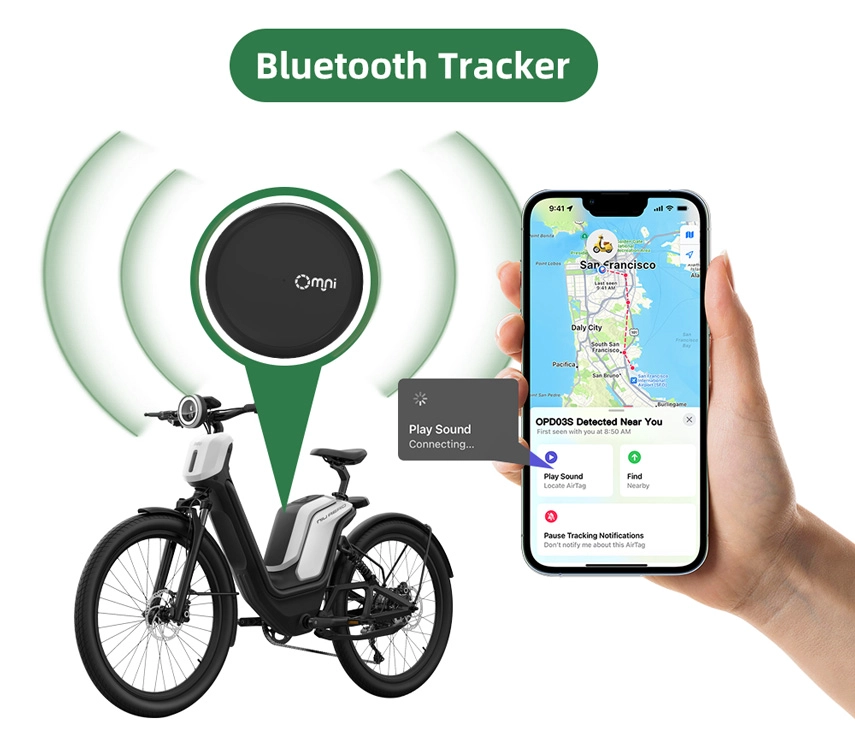
- BLE Communication – Low power, stable connection
- Ultra-Slim Design – Lightweight and discreet
- Lanyard Hole – Easy to attach anywhere
- Replaceable Battery – Long-term usability
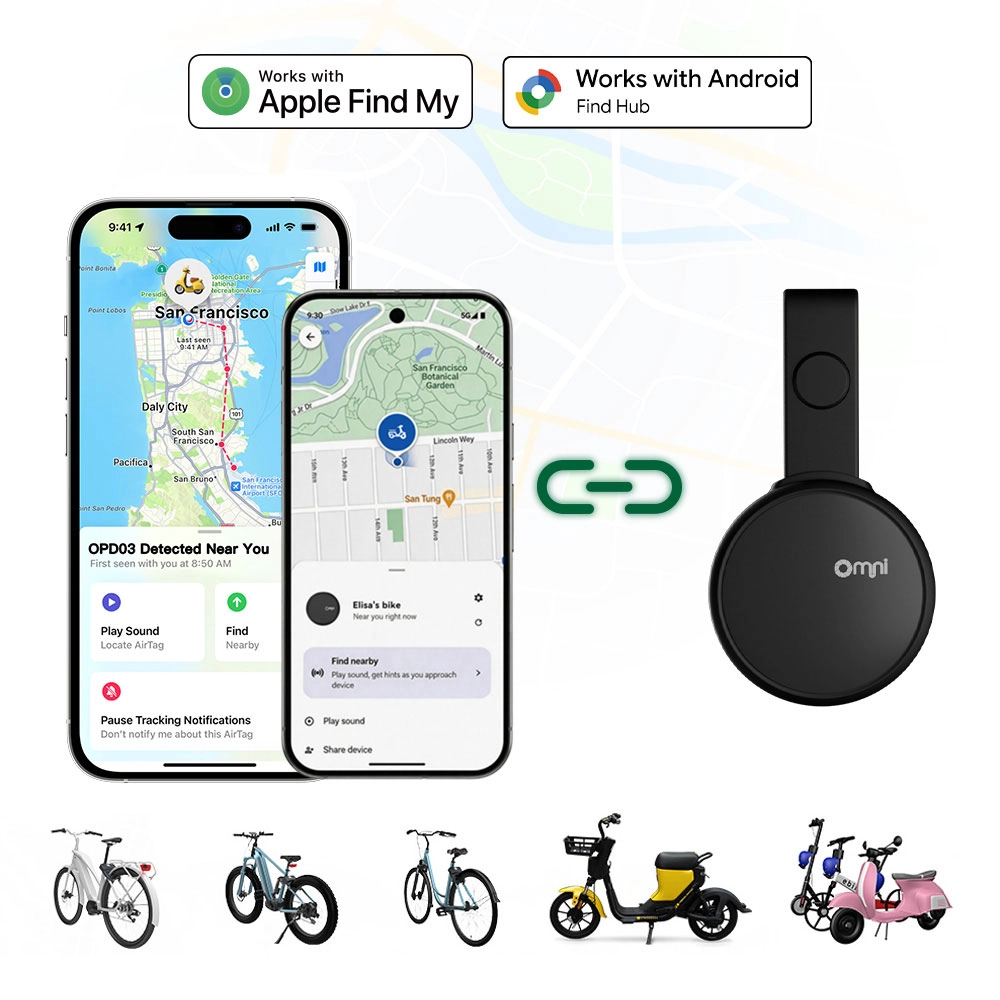
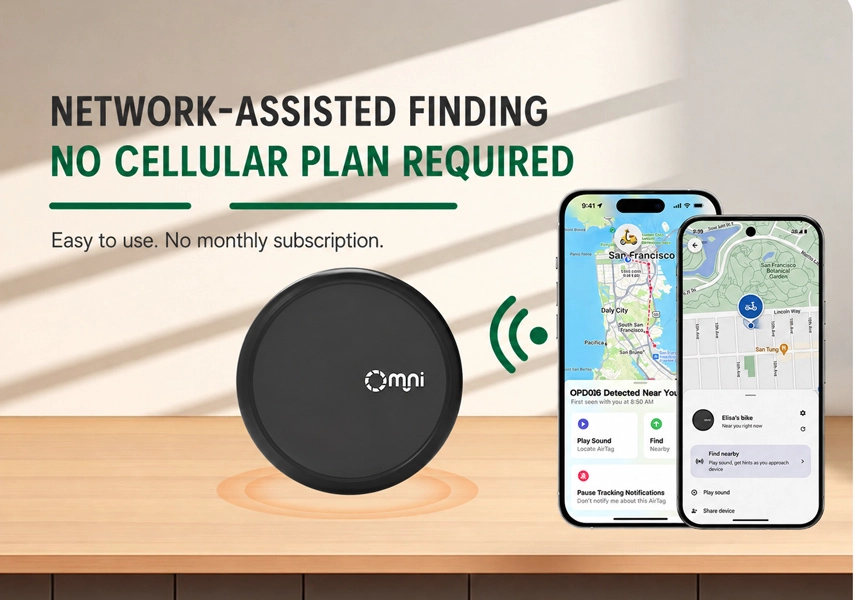
- Apple Find My & Google Find Hub-Compatible with both Apple and Android Global locating network
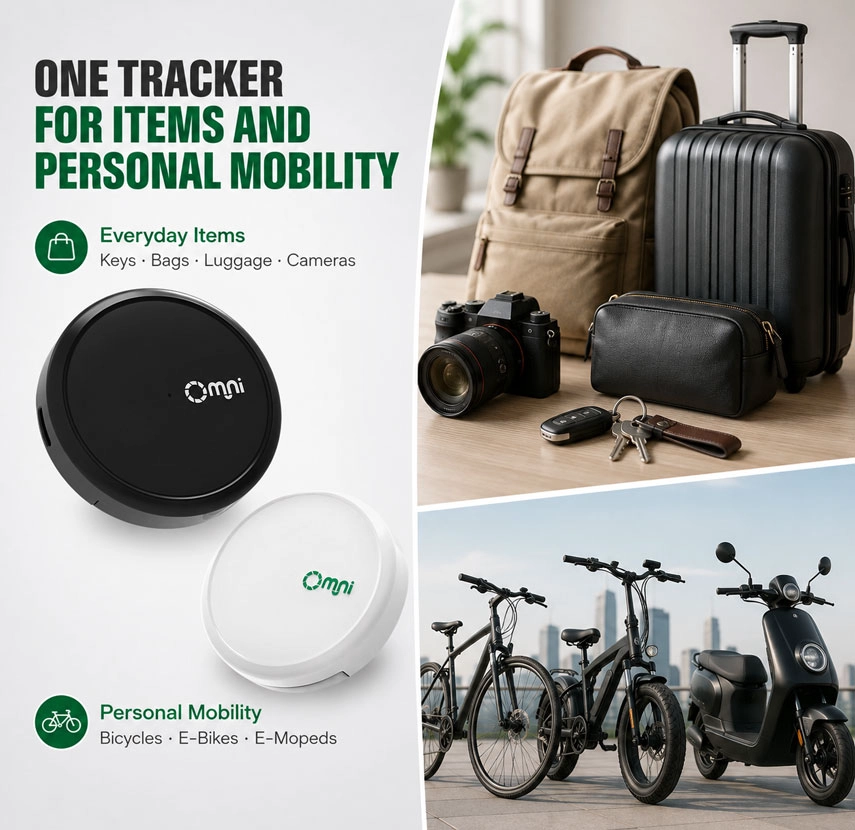
Omni Mini Locator for Keys, Wallets, Bags, Luggage, Bikes, Vehicles, and More
Compact finding for everyday valuables and personal mobility.
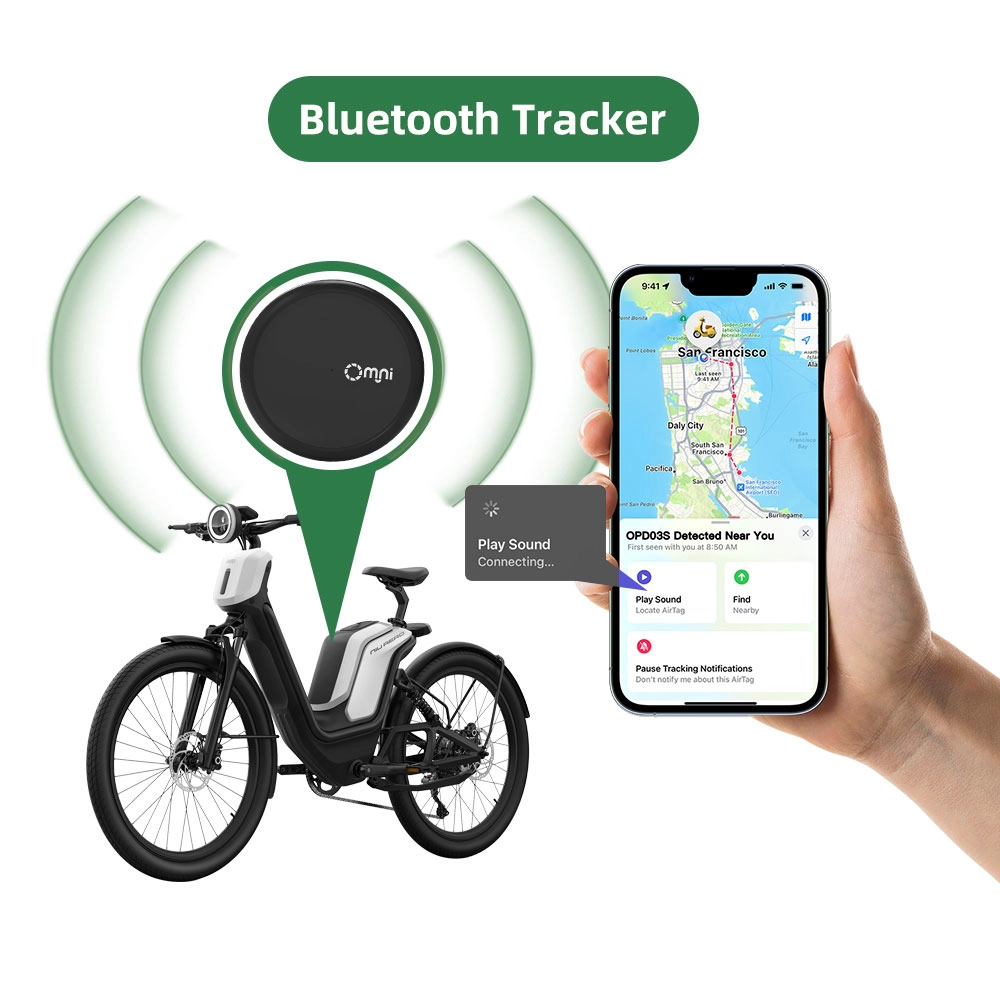
Small enough for bags,keys,gear and luggage, yet practical for discreet placement on bicycles and e-bikes. OMNI mini locator helps users check item locations through their selected finding network and play a sound when the item is nearby.
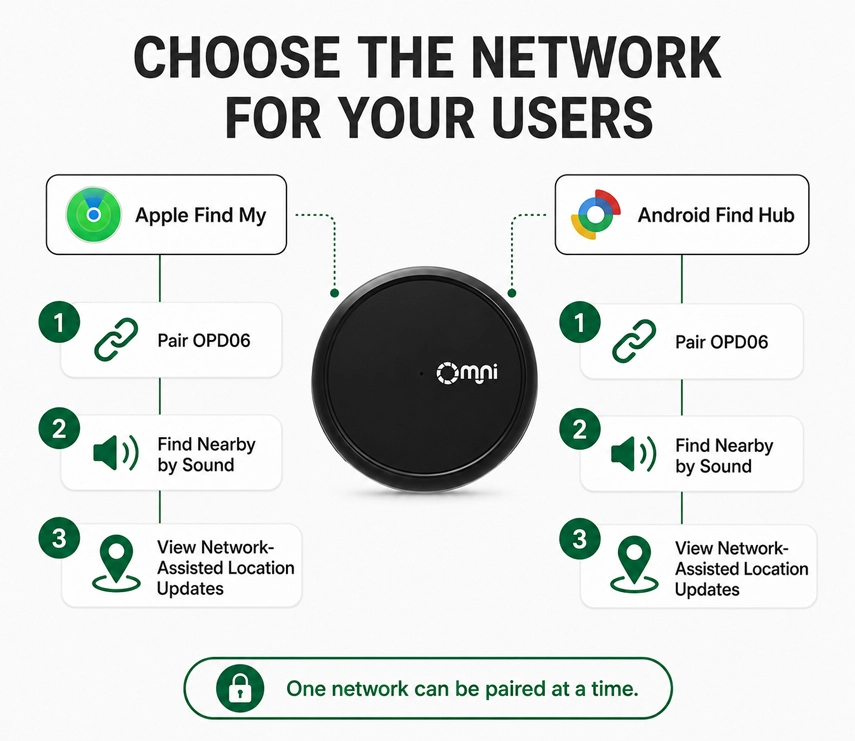
Find It Your Way
This mini locator is compatible with Apple Find My and Google Android Find Hub.
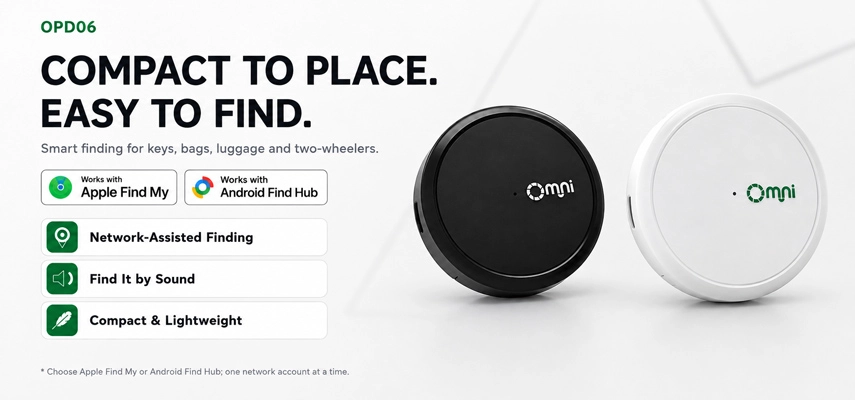
Built for Retail and B2B Projects
Available in black and white for retail programs, promotional projects and mobility applications. Logo, packaging and project-level customization are available for qualified orders.
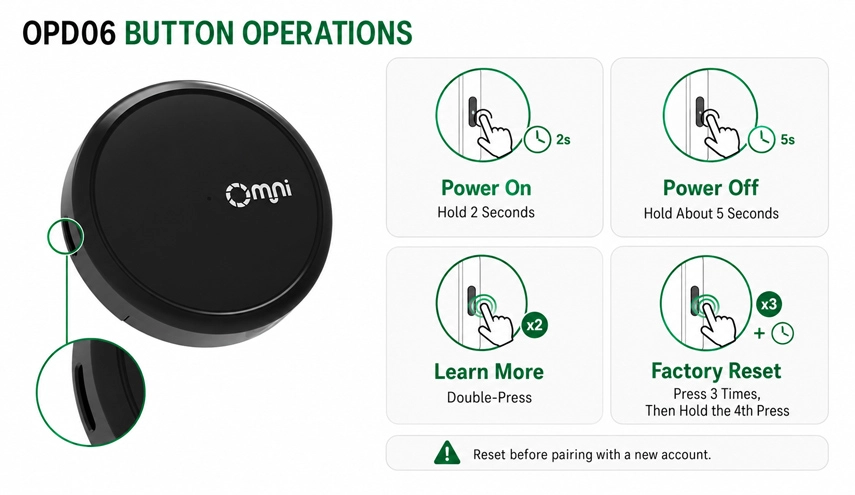
OPD06 Button Operations
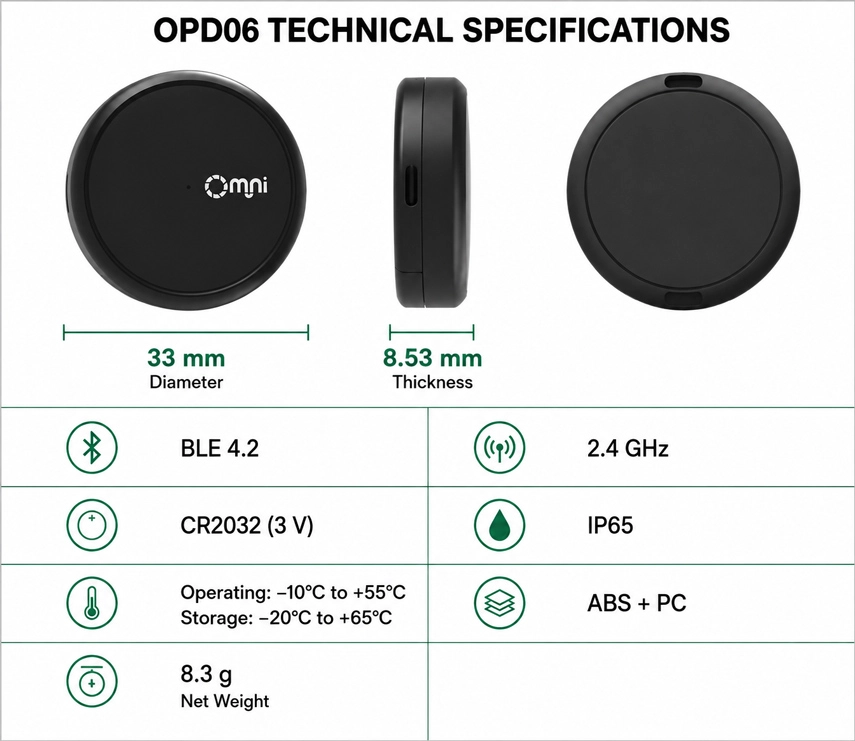
OPD06 Technical Specifications
Disabling the Omni Mini Locator
The OMNI mini locator can be disabled to stop it from sharing its location. Once disabled, it will no longer report to Google’s Find Hub network or Apple’s Find My network, and the owner will no longer receive updates on its current location. It will also stop triggering unknown locating alerts. If you receive a notification on your Android or iOS device indicating that an OMNI mini locator has been detected nearby and you are unfamiliar with this device, you can make it ring through the system notification. After locating the device, follow the steps below to disable it.
Disable via Button Press:
-
Locate the button on your OMNI mini locator.
-
Press and hold the button for about 5 seconds. You will hear three confirmation beeps when succeed.
Disable via Battery Removal:
- Push the back cover of the OMNI mini locator in the direction indicated to slide it open.
- Remove the CR2032 coin battery from the battery compartment.
- After the battery is removed, the OMNI mini locator will stop reporting its location.
- Align the cover with the device and slide it back into place to close the device.
Re - enable the OMNI Mini Locator:
To re - enable the OMNI mini locator, either press the button or reinstall the battery.
Press the Button:
Press the button for one second. When re - enabled, you will hear a confirmation beep.
Replace the Battery:
If you removed the battery, place a new CR2032 coin battery inside with the positive side up, and close the device.
Factory Reset and Pairing:
To reset the OMNI mini locator to factory settings, press the button three times quickly and hold the forth time for one second. After you hear a long beep, release the button. After resetting, you can pair the OMNI mini locator with a new Google or Apple account.
Important Notes:
- When the OMNI mini locator is paired with an Android device, it operates as a Google Find Hub locator tag. If paired with an iOS device, it functions as an Apple Find My locator tag.
- For pairing, ensure Bluetooth is enabled on your device and that it has internet access. To activate the OMNI mini locator, press the button once, and you will hear a melody confirming activation.
- You can remove the OMNI mini locator from either the Google Find Hub app on Android or the Find My app on iOS. If it’s within Bluetooth range, a factory reset will automatically occur upon removal from the app. If out of range, perform a manual factory reset.

OPD06 BUYER FAQ
Qestion:Can both networks run at the same time?
Anwer: No.Chooseoneplatformwhenpairing
Qestion: Does OPD06 reguire the OMNI iTracker App?
Anwer: No.It connects through Apple Find My or Android Find Hub.
Qestion: Can it be paired with a new account?
Anwer: Yes.Unbind and reset the device before pairing again.
Qestion: Can the product be customized?
Anwer: Logo,packaging and accessory options are available.
Tel:+8619926827775
Wechat:omni-iot
Contact Person:Miki Tam
- Other Products